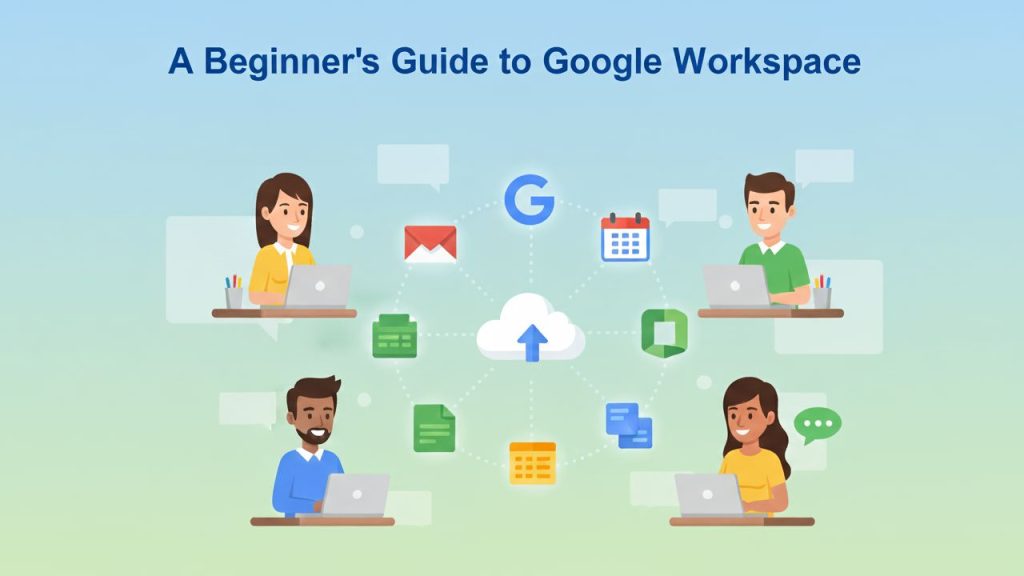
What Is Google Workspace?
Google Workspace is an all-in-one suite of productivity tools designed to help individuals, businesses, and teams collaborate, create, and communicate effectively. Whether working alone or as part of a team, Google Workspace has everything you need to stay organized and productive. The suite includes familiar tools like Gmail, Google Docs, Google Sheets, Google Drive, and more, all seamlessly integrated to work together.
One of Google Workspace’s key benefits is its ability to work in real-time. Collaboration is easy; team members can edit documents simultaneously, send emails, schedule meetings, and share files without leaving the platform. This integration is essential for businesses that need streamlined workflows and communication. Google Workspace helps boost productivity by providing cloud-based tools that can be accessed from anywhere on any device, making it an invaluable solution for remote teams or people on the go.
Google Workspace was launched as G Suite in 2006, primarily as a cloud-based productivity solution. Over the years, Google refined and expanded its suite of tools to meet the growing needs of businesses and professionals. In 2020, Google rebranded G Suite to Google Workspace, reflecting a more integrated and unified approach to work that emphasizes collaboration and productivity. The rebranding came with enhancements, including improved AI-powered tools, deeper app integration, and greater flexibility for users and administrators.
Setting Up Your Google Workspace Account
Whether you’re an individual looking for personal productivity tools or a business owner in need of collaboration tools for your team, setting up Google Workspace is simple. Here’s a step-by-step guide:
Signing Up for Google Workspace
If you’re setting up a personal account, you can begin by signing up directly on Google’s website. However, if you’re a business looking to set up a Google Workspace account for your team, you’ll need to select the appropriate pricing plan based on the size of your team and the features you need. Google Workspace offers various plans, such as Business Starter, Business Standard, Business Plus, and Enterprise, each with different levels of storage, security, and administrative controls.
Pricing Plans
Google Workspace offers a variety of pricing plans. For individuals, there’s a free version available with access to core tools like Gmail and Google Docs, but with limited storage and collaboration features. For businesses, the plans are more advanced:
- Business Starter: Provides up to 30GB of storage per user, essential collaboration tools, and basic security features.
- Business Standard: Offers 2TB of cloud storage, advanced meeting features in Google Meet, and additional collaboration tools.
- Business Plus: Provides 5TB of storage and enhanced security features like Vault and advanced endpoint management.
- Enterprise: Custom plans with tailored features and maximum flexibility, perfect for larger organizations.
Managing User Accounts
Once you’ve signed up, it’s time to create user accounts for your team (if applicable). Google Workspace Admin Console allows administrators to manage users, create organizational units, assign roles, and configure various settings for security and accessibility. Setting up user accounts involves adding email addresses, assigning roles, and configuring security measures like two-step verification to ensure safety and privacy.
Setting Up a Business Domain for Businesses
You’ll also need to configure your domain to personalize your email addresses (e.g., yourname@yourcompany.com). That is done by verifying ownership of your domain through the Admin Console and linking it to your Google Workspace account. Once set up, all communication can be done through your custom domain.
Gmail: Mastering Email Communication
As one of the most popular tools in Google Workspace, Gmail isn’t just for sending and receiving emails; it’s an all-in-one communication hub. Here’s how to make the most of Gmail:
Basic Features
Gmail’s interface is intuitive and user-friendly. Its basic features include composing, replying, forwarding, and organizing emails. You can also create folders or labels to categorize your messages, essential for keeping your inbox clutter-free. Gmail’s Priority Inbox feature automatically sorts important emails to the top of your inbox so you don’t miss anything important.
Setting Up Email Signatures & Vacation Responders
Gmail lets you personalize your emails with a custom email signature, including your name, position, contact info, or company logo. You can also set up vacation responders or out-of-office replies. This feature is beneficial when you’re away from work for extended periods, ensuring your contacts know when to expect a response.
Managing Multiple Inboxes and Labels
For users who manage multiple email accounts, Gmail’s multiple inboxes feature lets them view all their accounts in one place. Additionally, labels can help you categorize emails based on projects or topics, and filters can automatically sort your incoming messages into the correct labels.
Effective Gmail Search
Gmail’s search bar is robust, helping you find specific emails quickly. You can use search operators (like “from, “subject,” or “has: attachment”) to narrow down your results. That is incredibly helpful when managing large volumes of email, making it easier to locate key messages without scrolling through your inbox.
Google Drive: Storing and Organizing Files
Google Drive is the backbone of Google Workspace’s cloud storage system. It offers secure, accessible, and collaborative storage for your files and documents. Here’s a closer look at how Google Drive can help you organize and manage your digital assets:
Understanding Google Drive
At its core, Google Drive provides cloud-based storage for uploading and storing files such as documents, photos, videos, and more. Unlike traditional file storage on a computer, Google Drive allows you to access your files from any device connected to the Internet. This flexibility makes it ideal for remote work, file sharing, and collaboration.
Uploading, Organizing, and Sharing Files
Uploading files to Google Drive is easy: drag and drop files into the Drive interface, or use the “New” button to upload from your computer. Once uploaded, files can be organized into folders and color-coded for easy identification. You can share files by right-clicking and selecting “Share,” allowing you to control who can access your files. Permissions can be customized (view, comment, edit) depending on the level of access you want to grant.
Collaboration and Permissions
Google Drive is built for collaboration. You can share files with individuals or groups and collaborate on documents in real-time. You can also adjust permissions, allowing team members to view, comment on, or edit files. That is especially useful for team projects, as everyone can work together seamlessly on the same document without needing back-and-forth emails.
Organizing with Folders and Color Coding
To keep your Google Drive organized, you can create a folder structure that mirrors how you work. You can even color-code folders to identify critical or frequently used directories visually. This simple organizational system keeps everything in its place, preventing a cluttered Drive that can be hard to navigate.
Google Docs: Creating and Editing Documents
Google Docs is a powerful word processor that makes creating, editing, and collaborating on text-based documents easy. Whether drafting a report, writing an email template, or brainstorming with a team, Google Docs has all the necessary tools.
Basic Features
Google Docs offers all the essential features you expect from a word processor: text formatting, font styles, paragraph alignment, bullet points, and more. Additionally, Docs supports rich media, allowing you to insert images, tables, charts, and even videos into your documents. The user-friendly interface allows you to focus on writing without distraction.
Using Templates for Faster Creation
If you need to create specific types of documents (like resumes, letters, or reports), Google Docs offers a variety of built-in templates. These templates help you start quickly, providing a framework you can fill in with your content. This is a time-saving feature, especially for professionals who need to produce documents regularly.
Real-Time Collaboration
One of Google Docs’s standout features is its ability to allow multiple people to work on a document simultaneously. Changes appear in real-time, and you can see who is editing which part of the document. That eliminates the need for emailing documents back and forth and ensures everyone is always working on the most up-to-date version.
Managing Revisions with Version History
Google Docs saves versions of your document as you make changes, and you can view the version history at any time. This feature ensures that your work is always protected, as you can revert to a previous version if you make a mistake or want to see how the document has evolved.
Google Sheets: Spreadsheet Essentials
Google Sheets is a versatile tool for managing and analyzing data. Whether you’re tracking finances, analyzing project timelines, or organizing inventory, Sheets is equipped with the functionality to help you get the job done. Let’s dive into how you can use Google Sheets to make your data-driven tasks more straightforward and collaborative.
Google Sheets and Basic Functions
Google Sheets is a cloud-based spreadsheet application similar to Microsoft Excel. It is accessible from any device with an internet connection. A Google Sheet’s basic structure consists of rows, columns, and cells, where you can enter text, numbers, and formulas. The Sheets interface is user-friendly, making it easy for beginners and advanced users to create and manipulate data. Some of the most common functions you’ll use in Google Sheets include:
- SUM: Adds up numbers in a selected range of cells.
- AVERAGE: Calculates the average of a set of numbers.
- IF: Creates conditional formulas to test whether certain conditions are met and perform actions accordingly.
- VLOOKUP: Searches for a value in one column and returns a corresponding value from another.
- COUNTIF: Counts the number of cells that meet a specific condition.
These functions can be combined to create powerful formulas that help you perform complex calculations or data analysis.
Organizing Data with Rows, Columns, and Tabs
To effectively manage large amounts of data, it’s essential to understand how to organize your information. You can use rows (horizontal) and columns (vertical) to structure your data in Google Sheets. Rows are numbered, and columns are lettered, allowing you to reference individual cells easily (e.g., A1, B2, etc.).
You can use tabs (or sheets within a workbook) to categorize different data sections for even better organization. For example, you could have one tab for Sales Data, another for Inventory, and yet another for Expenses. That helps you separate different datasets and makes it easier to navigate your spreadsheet when you’re working with multiple types of information.
Key Formulas and Functions for Beginners
In addition to essential functions, many more formulas can enhance your work in Google Sheets. Here are a few beginner-friendly functions:
- Text Functions: For manipulating text in cells. For instance, CONCATENATE joins multiple text strings into one cell, while LEFT, RIGHT, and MID allow you to extract specific text parts.
- Date Functions: To work with dates, use TODAY() to insert today’s date or DATEDIF() to calculate the difference between two dates.
- Array Formulas: These allow you to apply a formula to an entire range of cells instead of one cell at a time.
Learning to use these functions will significantly improve your ability to work with data efficiently.
Collaboration Features: Sharing and Real-Time Updates
Google Sheets is particularly powerful when it comes to collaboration. Unlike traditional desktop applications, Sheets allows you to work with others simultaneously. You can share a document with others, assign them roles (view, comment, or edit), and watch as they make changes in real-time. That is especially useful for teams working together on the same data set without worrying about version control.
In addition to real-time editing, Sheets also has commenting functionality. You can add comments to specific cells, tag colleagues to notify them, and resolve comments once they’ve been addressed. That facilitates clear communication within the document, keeping everything organized and ensuring no feedback is missed.
Google Slides: Crafting Presentations
Google Slides is a dynamic tool for creating professional presentations, and it’s built for collaboration. Whether you need to create a sales pitch, a team update, or a marketing proposal, Google Slides provides everything you need to craft a compelling presentation that’s easy to share and update.
How to Create a Presentation Using Google Slides
Creating a presentation in Google Slides starts with selecting a template or designing your own from scratch. Google offers a variety of built-in templates, such as those for business proposals, marketing decks, educational presentations, and more. These templates include pre-designed layouts and color schemes, which help you maintain a professional look and feel for your slides.
If you prefer to start fresh, choose a blank presentation and begin designing each slide individually. To add slides, you can click the New Slide button or press Ctrl + M. You can customize the layout of each slide by adding text boxes, images, charts, and shapes.
Choosing Templates and Themes
Templates and themes are the backbone of a cohesive presentation. Selecting a pre-built theme allows you to apply a consistent style across your slides. You can also adjust colors, fonts, and background images to match your brand or the tone of your presentation.
Themes help your presentation look polished and professional without manually adjusting each slide’s formatting. Google Slides allows you to choose from a range of styles, from minimalistic to vibrant, depending on the nature of your content.
Adding Text, Images, and Animations to Your Slides
One of Google Slides’ main features is adding multimedia elements to your slides. You can easily insert images, videos, and audio clips to complement your presentation. To add an image, click the Insert menu and choose Image to upload from your computer or Google Drive.
Google Slides also offers animations and transitions, which add a dynamic touch to your presentation. You can animate individual elements (such as text or images) so that they appear or disappear engagingly. Adding smooth transitions between slides keeps the flow of your presentation seamless and professional.
Collaborating on Presentations
The collaboration features in Google Slides are especially useful for teams working together on a presentation. Multiple people can edit the slides simultaneously, with each person’s cursor appearing in a different color. You can add comments to specific slides or elements, tag other collaborators, and resolve feedback directly within the presentation.
Using Google Slides, you can ensure that everyone on the team is aligned and that changes are reflected in real-time. That removes the hassle of dealing with different versions of the same document and enables smooth collaboration.
Google Calendar: Scheduling and Managing Time
Google Calendar is an essential tool for managing your time and staying organized, whether scheduling meetings, managing appointments, or keeping track of deadlines. With its simple interface and robust features, Google Calendar helps you maintain control of your schedule while providing powerful collaboration features.
Overview of Google Calendar Features
Google Calendar allows you to create, edit, manage events, set reminders, and organize your day. One of its most valuable features is the ability to sync with other Google Workspace apps, so your schedule is always up-to-date. For example, receiving an invitation via Gmail can automatically be added to your calendar.
You can create multiple calendars for different areas of your life (work, personal, family) and view them separately or combine them in a single view. Additionally, Google Calendar can suggest meeting times based on the availability of all participants, helping you find a time that works for everyone.
How to Create and Manage Events
Creating an event in Google Calendar is simple. Click on any open time slot and enter the event details, such as the name, location, and time. You can also set the event to repeat (daily, weekly, monthly, etc.), making managing recurring events like team meetings or appointments easier.
Once your event is created, you can invite others by adding their email addresses. Google Calendar will send them an invite with the option to accept, decline, or suggest a new time. You can also attach documents or notes to the event, providing additional context for the attendees.
Sharing Calendars and Managing Permissions
Google Calendar readily shares your schedule with colleagues, friends, or family. You can share your calendar with others and give them different levels of access: view only, edit, or manage settings. That is particularly useful for teams, as it lets everyone see each other’s availability and easily schedule meetings.
Managing permissions is crucial for maintaining control over your calendar. You can prevent others from making changes or seeing only specific events, ensuring your calendar remains private and secure.
Syncing Google Calendar Across Devices
Google Calendar is fully synchronized across all your devices. Whether you’re on your phone, tablet, or computer, you can access your calendar from anywhere. The mobile app allows you to manage events on the go, while integration with other apps like Gmail and Google Meet ensures you never miss a meeting or appointment. Google Calendar works offline, so you can check your schedule and receive event notifications without an internet connection.
Google Meet: Video Conferencing for Collaboration
Effective communication is key in today’s remote work environment, and Google Meet provides a powerful, easy-to-use platform for video conferencing. Whether you’re connecting with colleagues, clients, or partners, Google Meet makes it simple to host or join video meetings, no matter where you are.
Setting Up and Joining Google Meet Meetings
Setting up a Google Meet meeting is incredibly easy. If you’re using Google Calendar, you can create an event and add a Google Meet link. Alternatively, you can go to the Google Meet app or website, click “New Meeting,” and choose to create a meeting immediately or get a link to share with participants.
Once the meeting is set up, all invitees will receive an email with a link to join the video call. Joining the meeting is just as straightforward; participants click the link and are brought directly into the video conference. You can join meetings via your browser, the Google Meet mobile app, or even dial in using a phone number, ensuring maximum accessibility for all participants.
Key Features: Screen Sharing, Background Blur, and More
Google Meet is equipped with several essential features to enhance the meeting experience:
- Screen Sharing: You can share your screen with participants to present slides, spreadsheets, or other content. You can share your entire screen or just a specific application window.
- Background Blur: The background blur feature maintains your privacy by blurring your surroundings while keeping you in focus. This feature helps eliminate distractions during meetings.
- Subtitles: Google Meet also offers real-time captions during meetings, which can be helpful for participants who are hard of hearing or those in noisy environments.
- Recording: If you need a record of your meeting, you can use the recording feature to capture the session. The recording is automatically saved to Google Drive for easy access later.
Managing Meeting Settings: Muting, Recording, and Participant Controls
As a meeting host, Google Meet provides you with several options for controlling the meeting environment:
- Mute Participants: To keep the meeting organized, you can mute participants who speak too loudly or have background noise.
- Participant Controls: You can allow or disallow participants from sharing their screens or chatting and remove them from the meeting if necessary.
- Recording and Transcripts: For important meetings, you can record the session and download the video or transcript for later reference. That is useful for meetings where you may want to revisit discussions or share the meeting with someone who couldn’t attend.
Integration with Google Calendar for Easy Scheduling
One of Google Meet’s best features is its integration with Google Calendar. When you schedule a meeting, Google Meet automatically generates a unique meeting link in the calendar invite. The participants can click the link to join the meeting at the scheduled time, streamlining the process of setting up and joining calls. This integration reduces the need for separate tools and eliminates confusion, making scheduling and participation easy for everyone.
Google Chat: Instant Messaging and Team Collaboration
Google Chat is integral to Google Workspace’s communication suite, offering real-time messaging and team collaboration. Chat provides a platform for quick communication and collaboration, whether you’re working on a project or need to ask a quick question.
Introduction to Google Chat and Its Integration with Gmail and Meet
Google Chat is integrated with Gmail, allowing you to communicate with colleagues directly from your inbox. In addition to sending direct messages, you can create Rooms (now called Spaces) within Google Chat, which serve as group messaging threads for team discussions. These spaces can be used for specific projects, topics, or teams, making it easier to keep communication organized.
Google Chat is also tightly integrated with Google Meet so that you can start a video call directly from a chat conversation. This seamless integration ensures that all communication stays in one place, whether you’re messaging or having a video meeting.
Sending Messages and Creating Channels for Team Communication
In Google Chat, you can send direct messages to individuals or create channels (Spaces) for team-based conversations. Channels help organize group discussions, keeping conversations focused on specific topics, projects, or teams. For example, you can have a channel dedicated to a specific project where team members can ask questions, share updates, and collaborate effectively. You can also use @mentions to tag individuals within conversations, which will notify them about specific messages. It ensures that important updates are not missed, even if the team is busy.
Using Bots and Automation in Google Chat
Google Chat allows you to integrate bots that help automate tasks, provide reminders, or bring external information into the conversation. For instance, you can use bots to set reminders, schedule meetings via Google Calendar, or even integrate third-party apps like Trello or Asana to keep track of project tasks.
Managing Notifications and Organizing Your Conversations
Google Chat provides customizable notification settings to help you manage how and when you’re alerted to new messages. You can mute conversations, receive notifications only for direct messages, or set up custom notification rules based on keywords or people. Organizing conversations into categories, using labels for different projects or teams, and managing notifications ensures you stay on top of your work without feeling overwhelmed.
Google Contacts: Organizing Your Network
Google Contacts is the central hub for managing your personal and professional contacts. With Google Workspace, you can store and organize your contacts for easy access, whether you’re reaching out for a project, a meeting, or networking purposes.
Adding and Managing Contacts in Google Contacts
Google Contacts is automatically integrated with Gmail, so any email address you communicate with will be added to your contact list. You can manually add contacts, inputting names, emails, phone numbers, and additional details like job titles, birthdays, or company information. Once added, you can group contacts into contact groups for easier management. For example, you could create groups for Clients, Team Members, or Vendors, which will help you quickly find and communicate with the right people.
Creating Contact Groups for Easy Communication
Google Contacts allows you to create labels or groups, which are especially helpful for organizing your contacts based on different categories. You can then email these groups directly from Gmail, streamlining communication. For instance, if you frequently email a group of clients or colleagues, you can email the entire group by simply typing the group’s label in the recipient field.
Syncing Contacts Across Google Workspace Apps
Google Contacts syncs across all Google Workspace apps, including Gmail, Calendar, Meet, and Drive. It ensures that you always have quick access to your contacts and their details, no matter which tool you use. For example, when scheduling a meeting in Google Calendar, you can easily invite contacts from your Google Contacts list.
Using Labels and Filters to Organize Contacts Efficiently
To further organize your contacts, you can use labels and filters. Labels can categorize contacts (e.g., “Marketing Team,” “High-Value Clients”), while filters can help you sort contacts by specific criteria, such as recent interactions or job titles. That makes it easier to find the right person when you need to get in touch.
Google Forms: Collecting Data and Feedback
Google Forms is a versatile tool for collecting information, whether you need to conduct surveys, gather feedback, or create quizzes. With its user-friendly interface and customization options, Google Forms simplifies gathering responses and analyzing data.
Creating Forms for Surveys, Quizzes, and Feedback
Google Forms lets you easily create forms to collect data. Whether you’re conducting a survey to collect customer feedback or creating a quiz for educational purposes, the platform provides a range of question types, including multiple-choice, short answer, and checkboxes.
The drag-and-drop interface makes it easy to design your form. You can add branding elements like logos or custom colors to match your company’s style. For more complex forms, you can add sections to organize your questions and create a smoother experience for respondents.
Customizing Form Questions and Answer Types
Each question in Google Forms can be customized with various answer types. You can choose from short answers, multiple choice, dropdowns, checkboxes, or even more advanced types like file uploads. You can even set up automatic scoring for quizzes, making it easy to assess responses.
Google Forms also allows you to make specific questions required or provide conditional logic, where the answers to one question determine which questions are shown next. That creates a more dynamic and personalized experience for respondents.
Analyzing Responses in Google Sheets
Once you’ve collected responses to your Google Form, they can be automatically stored in Google Sheets for easy analysis. This integration allows you to sort, filter, and perform calculations on your data using the power of Google Sheets’ formulas and functions.
Sharing and Collaborating on Forms with Others
Google Forms also enables collaboration with others in real-time. For instance, you can invite colleagues to help you design the form or analyze the data as it comes in. Once the form is ready, you can easily share it via a link, embed it on your website, or send it via email. It ensures that gathering feedback or collecting data is quick and seamless.
Google Keep: Taking Notes and Organizing Ideas
Google Keep is a simple yet effective note-taking and idea-organizing tool that integrates seamlessly into the Google Workspace ecosystem. Whether you’re jotting down a quick reminder, brainstorming ideas, or capturing meeting notes, Google Keep offers a convenient and user-friendly platform to help you stay organized.
Introduction to Google Keep for Note-Taking
Google Keep is designed to make note-taking fast and accessible. It’s available both as a web app and a mobile app, making it easy to take notes no matter where you are. The minimalist and intuitive interface lets you quickly create and save notes with just a few clicks or taps.
You can create text notes, add voice memos, upload images, or even create checklists you must accomplish. One of the most popular features of Google Keep is its ability to sync across all devices, ensuring that your notes are always available whenever you need them, whether you’re on your phone or laptop.
How to Create and Organize Notes with Labels and Colors
Google Keep allows you to organize your notes using labels and colors. Labels help you categorize notes based on topics or themes (e.g., “Work,” “Personal,” or “Grocery List”), making it easy to find related notes later. Color-coding your notes adds another layer of organization. By assigning specific colors to different types of notes, you can quickly visually identify the ones you need.
You can also pin important notes to your list for quick access. That is especially useful when you have a lot of notes, as it ensures your most urgent or important ones remain at the forefront.
Setting Reminders and Sharing Notes with Collaborators
Google Keep is great for reminders. You can set time-based or location-based reminders, so you’ll be notified when it’s time to follow up on a task or when you’re near a location where you need to complete an errand. That is incredibly helpful for managing deadlines or tasks that need to be done at specific times or places.
Another powerful feature is the ability to share notes, which is particularly useful for collaborative brainstorming or planning. Whether you’re working on a project with a team or sharing a grocery list with family members, you can invite others to view or edit your notes in real time.
Syncing Notes Across All Devices with Google Keep
One of Google Keep’s most significant advantages is its seamless synchronization. Your notes sync across all your devices, ensuring that everything you jot down on your phone is instantly available on your laptop and vice versa. Google Keep even works offline, allowing you to take notes when you don’t have an internet connection. Once you’re back online, all your changes are automatically synced. This level of synchronization ensures that your ideas, reminders, and tasks are always with you, no matter where you go or what device you’re using.
Google Sites: Building Simple Websites
Google Sites is an easy-to-use platform that allows you to create professional-looking websites without needing advanced web design or coding skills. Whether you’re building a personal portfolio, a company intranet, or a project page, Google Sites provides a streamlined process to get your site up and running in no time.
Introduction to Google Sites for Beginners
Google Sites allows anyone to create websites with a simple drag-and-drop interface. You don’t need to worry about HTML, CSS, or JavaScript; Google Sites handles your technical aspects. The platform is designed to be intuitive, so even beginners can start building websites quickly and easily.
Google Sites is fully integrated with other Google Workspace apps like Google Drive, Docs, and Sheets. You can embed documents, images, videos, and even Google Forms directly into your site without manually uploading content. It’s a fantastic solution for individuals or small teams that need a professional website without the hassle.
How to Create and Customize a Website
To get started with Google Sites, you need a Google account. After that, you can create a new site by clicking “Create” from the Google Sites homepage. You can choose from several website templates, like business, education, or personal blogs.
Customization is simple, as Google Sites offers drag-and-drop functionality. You can easily add text, images, embedded media, and even Google Maps to your pages. The platform lets you choose different page layouts and styles to match your branding or personal preferences.
Adding Text, Images, and Embedded Content
One of Google Sites’ standout features is its ability to integrate content from other Google Workspace tools. You can embed Google Docs, Sheets, Slides, and Google Calendar events into your site. That makes it an excellent tool for creating collaborative websites that need to display live, updated content.
Additionally, you can upload images or use the Google Image Search to find and insert visuals into your site. For users who want more control over the design, Google Sites can adjust fonts, colors, and layouts for a more personalized experience.
Publishing and Sharing Your Google Sites Project
Once your site is ready, you can publish it with a unique URL or share it with specific people. Google Sites allows you to set up sharing permissions, making the site private for a select audience or public for anyone on the internet. This flexibility makes Google Sites an excellent option for various use cases.
For teams or organizations, you can create internal websites or intranet portals where team members can access necessary resources, documents, and updates in a centralized location. Google Workspace’s ease of use and integration make it an ideal choice for anyone looking to build a functional website without technical barriers.
Google Tasks: Managing To-Do Lists
Google Tasks is a lightweight yet powerful task management tool that integrates seamlessly with other Google Workspace applications, like Gmail and Google Calendar. Whether you need to manage personal to-dos or track work-related tasks, Google Tasks offers a straightforward way to stay on top of your responsibilities.
Overview of Google Tasks for Task Management
Google Tasks is designed for simplicity. Unlike more complex project management tools, it focuses on organizing tasks without overwhelming you with too many features. You can easily create tasks, set due dates, and prioritize them. The minimalist interface allows you to jot down tasks as they come to mind quickly, and because it integrates with Google Calendar and Gmail, you never have to worry about missing a deadline.
Creating Tasks and Sub-Tasks for Better Organization
To start with Google Tasks, click on the Tasks icon in Gmail or Google Calendar and begin typing in your tasks. You can add titles, descriptions, and due dates, and create sub-tasks to break larger tasks into smaller, manageable steps. That makes it easier to track progress on complex projects.
You can prioritize tasks by setting due dates or assigning specific labels to categorize them. For example, you might use labels like “Urgent,” “In Progress,” or “Completed” to organize your list better. Google Tasks allows you to check off completed tasks, giving you a sense of accomplishment as you go along.
Setting Due Dates and Reminders
One of Google Tasks’ most valuable features is the ability to set reminders. For every task, you can specify a due date and even add a time for the reminder. It ensures you are notified when the task is due, preventing deadlines from slipping through the cracks. You can also add multiple reminders to keep the task in mind.
For tasks with specific times (such as appointments or meetings), Google Tasks integrates with Google Calendar. Thus, you will see these tasks appear alongside your calendar events. This integration ensures that your schedule is unified and nothing falls through the cracks.
Integrating Google Tasks with Gmail and Google Calendar
Google Tasks is fully integrated with Gmail and Google Calendar, making it a seamless part of your productivity toolkit. In Gmail, you can create tasks directly from emails by clicking the Tasks icon while viewing an email. You can then convert the email into a task with a link to the email for easy reference.
Similarly, tasks with due dates automatically sync with Google Calendar, where they appear alongside your calendar events. This integration helps ensure that your tasks and meetings are aligned, reducing the likelihood of double-booking or missing important deadlines.
Admin Console: Managing Google Workspace for Teams
The Admin Console is the central hub for managing your Google Workspace account, making it especially important for administrators who oversee the platform’s usage for their team or organization. Whether you manage a small team or a large enterprise, the Admin Console gives you the tools to control settings, monitor user activity, and maintain security across your organization.
Introduction to the Admin Console for Admins
The Google Workspace Admin Console is an online dashboard where you can manage all aspects of your organization’s Google services. To access it, you need to be an admin, someone who has been granted permission to manage users and settings for the entire workspace.
Within the Admin Console, you can manage users, adjust security policies, configure applications, monitor usage, and more. It’s where you can ensure your organization’s workflow stays organized, efficient, and secure. The interface is intuitive and designed to guide you through managing all your settings and configurations.
How to Add Users and Manage Permissions
One of the first tasks admins must handle is adding users to the system. That can be done in just a few clicks within the Admin Console. You can manually add individual users, or if you have a large group, you can bulk upload them using a CSV file. Once users are added, you can assign them to specific organizational units based on their department or role in the company.
Managing permissions is also an essential function within the Admin Console. You can control which apps and features users have access to. For example, if you have a team that doesn’t need access to Google Drive, you can turn it off, reducing unnecessary clutter and improving security. Additionally, you can configure user roles to give employees varying levels of access based on their responsibilities (e.g., full admin access, read-only access, etc.).
Configuring Organizational Units and Groups
Google Workspace lets you organize everything by setting up organizational units (OUs). These units represent users with similar roles or departments within your organization. By creating OUs, you can apply specific settings, permissions, and policies to those users. For example, your HR department might have different permissions than the IT team, so each can have tailored settings.
Additionally, you can create groups to allow teams to communicate and collaborate more efficiently. These groups can be email-based or collaborative spaces where users can interact based on their roles. For instance, you might create a “Marketing” group that all marketing department members can join, streamlining communication.
Managing Security Settings (2-Step Verification, Data Protection)
Google Workspace includes robust security features to protect your organization’s data. As an admin, you’ll want to enable 2-step verification (2SV) for all users to add protection to their accounts. 2SV ensures that even if someone gains access to a user’s password, they still need a second form of authentication (like a code sent to their phone) to log in.
You can also set security policies around data protection, such as data loss prevention (DLP) policies, which prevent sensitive information from being shared outside the organization. The Admin Console allows you to manage user access to external apps, set up rules for email encryption, and apply secure browsing policies to help keep company data safe.
Furthermore, the Admin Console allows you to monitor security and usage activity. You can access detailed logs that show who’s logging in, what data is being accessed, and whether any suspicious activity is occurring. That helps you stay proactive in identifying and mitigating security threats.
Security and Privacy Settings: Protecting Your Data
Security and privacy are critical when managing any cloud-based platform, and Google Workspace is designed to provide comprehensive tools to protect your organization’s data. From encryption to user verification and compliance with global privacy standards, Google Workspace offers features to keep your information safe.
Overview of Google Workspace’s Security Features
Google Workspace is built on the Google Cloud infrastructure, known for its robust security measures. All data is encrypted in transit and at rest, ensuring that sensitive information remains private. This encryption ensures that no unauthorized individuals can access your data, even if it is intercepted.
In addition to encryption, Google Workspace offers advanced security controls that allow admins to fine-tune their security settings. These features include user activity monitoring, device management, and advanced threat protection, all of which help protect your organization’s data from external and internal threats.
Google Workspace also complies with significant security certifications, including ISO 27001, SOC 2, GDPR, and more. This compliance demonstrates Google’s commitment to meeting industry standards for data protection, ensuring that your data is in safe hands.
Setting Up 2-Step Verification for Enhanced Security
One of the best ways to enhance account security is to require 2-step verification (2SV) for all users. This feature adds a layer of protection, ensuring that users must verify their identity using something they know (a password) and something they have (a mobile device, security key, etc.).
Admins can enforce 2SV at the organizational level, making it mandatory for all users. That significantly reduces the risk of unauthorized access, even if someone obtains a user’s password. Users can choose from various verification methods, including text messages, Google Authenticator, or physical security keys.
Managing Data Privacy and Sharing Permissions
Another crucial security aspect is controlling how data is shared inside and outside the organization. Google Workspace provides fine-grained control over file-sharing permissions. Admins can set up rules that restrict or allow file sharing based on user roles, organizational units, and external domains.
For example, you can prevent users from sharing files with people outside the organization or only allow specific individuals to share documents externally. That helps keep sensitive information from being exposed or leaked inadvertently. You can also track the sharing activity of files and documents to monitor for unusual or unauthorized access.
Understanding Google Workspace’s Compliance and Data Protection Standards
Google Workspace adheres to global data protection regulations such as the General Data Protection Regulation (GDPR) and California Consumer Privacy Act (CCPA), ensuring that your organization complies with local privacy laws. Google’s commitment to privacy means that your organization can rely on Google Workspace’s security framework to help protect personal and sensitive data.
Admins can use the Google Workspace Compliance Center to review audit logs, manage privacy settings, and ensure that the organization meets required compliance standards. These tools also allow you to manage data retention policies and create backups, providing peace of mind that your data is safe and accessible when needed.
Google Workspace Marketplace: Extending Functionality
The Google Workspace Marketplace offers a wide variety of third-party apps that integrate seamlessly with Google Workspace. These apps can enhance productivity, streamline workflows, and provide added functionality that might not be included in the base set of Google tools.
How to Find and Install Third-Party Apps from the Google Workspace Marketplace
To find apps in the Google Workspace Marketplace, go to the Marketplace tab in your Google Workspace Admin Console or visit the Google Workspace Marketplace website. You can browse apps by category, such as project management, CRM, or communication tools, or search for specific apps by name.
Once you’ve found the desired app, you can install it directly from the Marketplace. Some apps are free, while others may require a subscription. After installation, these apps will integrate with your Google Workspace environment, and users can start using them without needing to log in to a separate platform.
Integrating Tools for Project Management, CRM, and More
The Google Workspace Marketplace offers apps for nearly every aspect of business management, from project management tools like Trello or Asana to CRM platforms like Salesforce. These apps can connect directly with Gmail, Google Drive, and Google Calendar, ensuring a smooth data flow between your tools.
For example, if your team uses Trello for project management, you can integrate it with Google Drive to easily attach documents from Google Drive to Trello cards. That creates a unified workspace where your team can collaborate on tasks, manage deadlines, and access resources without switching between different tools.
Managing App Permissions and Settings
Once an app is installed, admins can control permissions to ensure the app has appropriate access to Google Workspace services. For instance, you can restrict an app’s access to specific files or data, providing an added layer of security. Some apps also offer customization options that allow you to tailor the app’s functionality to suit your organization’s needs.
As an admin, it’s essential to regularly review the apps your team is using, ensuring that they are up-to-date and compliant with your security policies. You can use the Admin Console to see which apps are installed, monitor their usage, and remove apps that are no longer needed or could pose security risks.
Popular Apps to Consider for Productivity and Collaboration
The Google Workspace Marketplace has many popular apps that can boost productivity and collaboration. Some top choices include:
- Slack for team communication and collaboration.
- Zoom for enhanced video conferencing.
- DocuSign for e-signatures and document management.
- Asana and Trello are responsible for project and task management.
By integrating these apps with Google Workspace, your team can work more efficiently, streamline workflows, and reduce the need for jumping between multiple platforms.
Google Workspace Mobile Apps: Accessing Tools on the Go
Accessing your work tools while moving is crucial. Google Workspace offers a mobile app suite that allows you to stay productive, collaborate with teams, and manage tasks from your smartphone or tablet. Whether in a meeting, traveling, or simply away from your computer, these apps ensure you’re always connected and in control.
How to Download and Set Up Google Workspace Mobile Apps
Google Workspace offers individual mobile apps for Gmail, Google Drive, Google Docs, Google Sheets, Google Slides, Google Calendar, and more. These apps are available for iOS and Android devices and can be easily downloaded from the App Store or Google Play Store.
Setting up the apps is straightforward. Once downloaded, sign in with your Google Workspace credentials, and you’ll have access to all your files, emails, calendars, and more right at your fingertips. The apps sync seamlessly across your devices, ensuring that everything is up to date no matter where you are. For instance, changing a document on your phone will automatically reflect across your computer and other devices.
Key Features Available in the Mobile Apps
Each Google Workspace mobile app brings the power of its desktop counterpart to your phone, with some mobile-specific features to improve usability on smaller screens:
- Gmail: You can send and receive emails, organize your inbox, apply labels, and even manage multiple email accounts. The mobile app also supports push notifications, ensuring you’re immediately alerted when you receive important emails.
- Google Drive: Access, upload, and share your documents, spreadsheets, presentations, and other files. You can also view files offline if you’ve previously marked them for offline use. That is great for when you’re in areas with poor connectivity.
- Google Docs, Sheets, and Slides: You can edit documents, spreadsheets, and presentations on the go. Google Docs automatically syncs changes, making your edits instantly available to others. The mobile apps also support offline editing, which means you can continue working even when you don’t have an internet connection.
- Google Calendar: The mobile version allows you to create, edit, and manage events. You can receive reminders for meetings, appointments, and deadlines, and even RSVP to events directly from your mobile device.
- Google Meet: You can join video calls, share your screen, and collaborate with team members in real-time. The Meet app is optimized for mobile, allowing for a smooth experience with high-quality video and audio.
c. Syncing Your Work Across Devices
One key benefit of Google Workspace mobile apps is their seamless syncing across all devices. Whether you switch between your phone, tablet, or computer, your changes are updated automatically, ensuring platform consistency. For instance, if you receive an email on your phone and then access Gmail from your desktop later, the email will already be marked as read.
Similarly, if you change a Google Doc on your phone, the same changes will appear in real-time on your computer. This syncing is made possible through your Google account, and it’s one of the main reasons why Google Workspace is such a powerful tool for on-the-go professionals.
Working Offline with Google Workspace Apps
The mobile apps for Google Workspace offer offline capabilities, which means you can work on your documents, emails, and calendars even when you don’t have access to the internet. For example, you can open a Google Doc or Google Sheet and make edits. Then, once you’re back online, all your changes will sync automatically.
This feature is invaluable for users who travel frequently or work in areas with unreliable internet connections. By enabling offline mode for specific files, you can continue to work without interruptions. Once you regain an internet connection, your changes will be updated in the cloud, and your team will see the latest version of your work.
Troubleshooting and Support: Getting Help with Google Workspace
While Google Workspace is designed to be intuitive and easy to use, you may occasionally encounter issues. Whether you’re experiencing technical problems or need help navigating the platform, multiple resources are available to help you troubleshoot and find solutions.
How to Access Google Workspace Support and Help Guides
Google provides many resources to help you get the most out of Google Workspace. The Google Workspace Help Center is a comprehensive online guide that contains step-by-step instructions for everything from account setup to troubleshooting common issues. You can access the Help Center by clicking on the “?” icon in the top-right corner of most Google Workspace apps or visiting the official Google Workspace Help website.
The Help Center is organized into categories based on your needs, so you can find detailed answers whether you’re looking to resolve a technical issue or learn how to use a specific feature. It also includes articles for admins and end users, making it a versatile resource for everyone. Additionally, the Google Workspace Admin Help section offers detailed support for administrators, covering everything from user management and security settings to troubleshooting issues with apps and syncing.
Using the Help Center and Troubleshooting Common Issues
The Help Center is a valuable tool for finding solutions to common problems. If you’re having trouble syncing Google Docs across devices, the Help Center can provide step-by-step troubleshooting guides to resolve the issue. If you encounter a problem with Google Meet video quality, some articles address typical issues like poor audio or video, and tips for optimizing your connection.
The Help Center also offers a wide range of community-based resources. Google Workspace users worldwide share their experiences, solutions, and best practices on the Google forums. If you’re experiencing a unique issue or can’t find a solution in the Help Center, engaging with the Google Workspace community can often provide the answers you need.
Engaging with Google Workspace Community Forums for Solutions
The Google Workspace Community Forums are an excellent resource for troubleshooting and learning from others. These forums allow you to ask questions and get answers from Google Workspace experts and fellow users. It’s a great place to find solutions to complex issues or to discuss new features and updates.
When posting a question, provide as much detail as possible about your issue, including the troubleshooting steps you’ve already taken. That will help others provide the most relevant and accurate advice.
Contacting Google Support for Technical Assistance
You can contact Google Support directly if you’ve tried troubleshooting through the Help Center and community forums and still can’t resolve the issue. Google offers 24/7 support to all Google Workspace customers, and you can reach out through various channels, including phone support, live chat, and email support.
The level of support for businesses using Google Workspace may vary depending on their subscription plan. For example, enterprise-level customers with a Google Workspace Enterprise plan may have access to more advanced support options and dedicated customer service representatives.
Getting the Most Out of Google Workspace
Google Workspace offers a comprehensive suite of tools that can transform how you work, whether you’re an individual or part of a team. From Gmail and Drive to Docs, Sheets, and Meet, Google Workspace provides everything you need for efficient communication, collaboration, and organization.
Following this beginner’s guide gives you the foundational knowledge to set up and use Google Workspace’s core tools effectively. The next step is to explore these features for yourself. As you become more familiar with Google Workspace, you’ll discover even more ways to enhance your productivity and collaborate seamlessly with others.
Tips for Boosting Productivity:
- Explore shortcuts: Google Workspace offers many keyboard shortcuts to speed up your work. For example, pressing “C” in Gmail instantly composes a new message. Learn these shortcuts to boost your efficiency.
- Leverage integrations: Use Google Workspace’s integration with other apps to streamline workflows. For instance, connect your Google Calendar with Zoom for easy meeting scheduling.
- Collaborate effectively: Use Google Docs, Sheets, and Slides’ real-time collaboration features. Multiple people can work on a document simultaneously, making it ideal for team projects.
- Stay secure: Set up 2-step verification and enforce security policies to ensure your data remains safe.
Whether you’re an entrepreneur, a freelancer, or part of a large team, Google Workspace offers the flexibility and tools to help you succeed. Start exploring and make the most of this powerful suite of tools today!